
A BD Access Portal Group Licensing is a user-based licensing system for institutions with at least 5 users that run FlowJo™ , Infinicyt™ , and/or SeqGeq™ . Included below is some basic administrator information that you will need to familiarize yourself with in order to effectively manage your BD Access Portal Group License.
- It is against our EULA for users to share BD Access Portal accounts, so users should not share their username/password with other users.
- Group licenses are self-managed with administrator tools in BD Access Portal. As the internal administrator of the group license, you will be able to invite, suspend and modify users access to your group license.
- Only primary admins receive correspondence from BD, including renewal reminders 30 days prior to expiration.
- Co-admins may be added by sending us a request to flowjoaccountservices@bd.com once the person has created a Portal account at bdaccessportal.com. There is no limit on number of co-admins
- Admins and co-admins can be, but do not have to be, users themselves. If they wish to be, an invitation must be sent like other users.
- Should you need to invite users with an email suffix different than the admin’s, please email flowjoaccountservices@bd.com and we will get the new email suffix added to the approved list.
- We recommend creating custom fields for the group license (if needed) prior to inviting users to join.
- As a reminder, each user who is active on the group license will be able to sign in to FlowJo™ or Infinicyt™ on up to 4 computers of their choosing, one computer at a time.
- Additional seat quotes may be requested by emailing flowjoaccountservices@bd.com directly or by replying to this email.
- Users are granted the ability to remove/replace up to 4 devices annually. Once these 4 replacements are used, users will not be able to remove/replace any more devices until their annual authorized devices reset date.
- If a user on the group license needs to manage their authorized devices (computers), please find helpful information here.
- When managing your BD Access Portal account, we recommend using google chrome.
To utilize your BD Access Portal administrator privileges you may want some initial simple instructions. If so, you’ve come to the right place! For more in-depth instructions specific to each tool, please click here.
Accessing Admin Tools
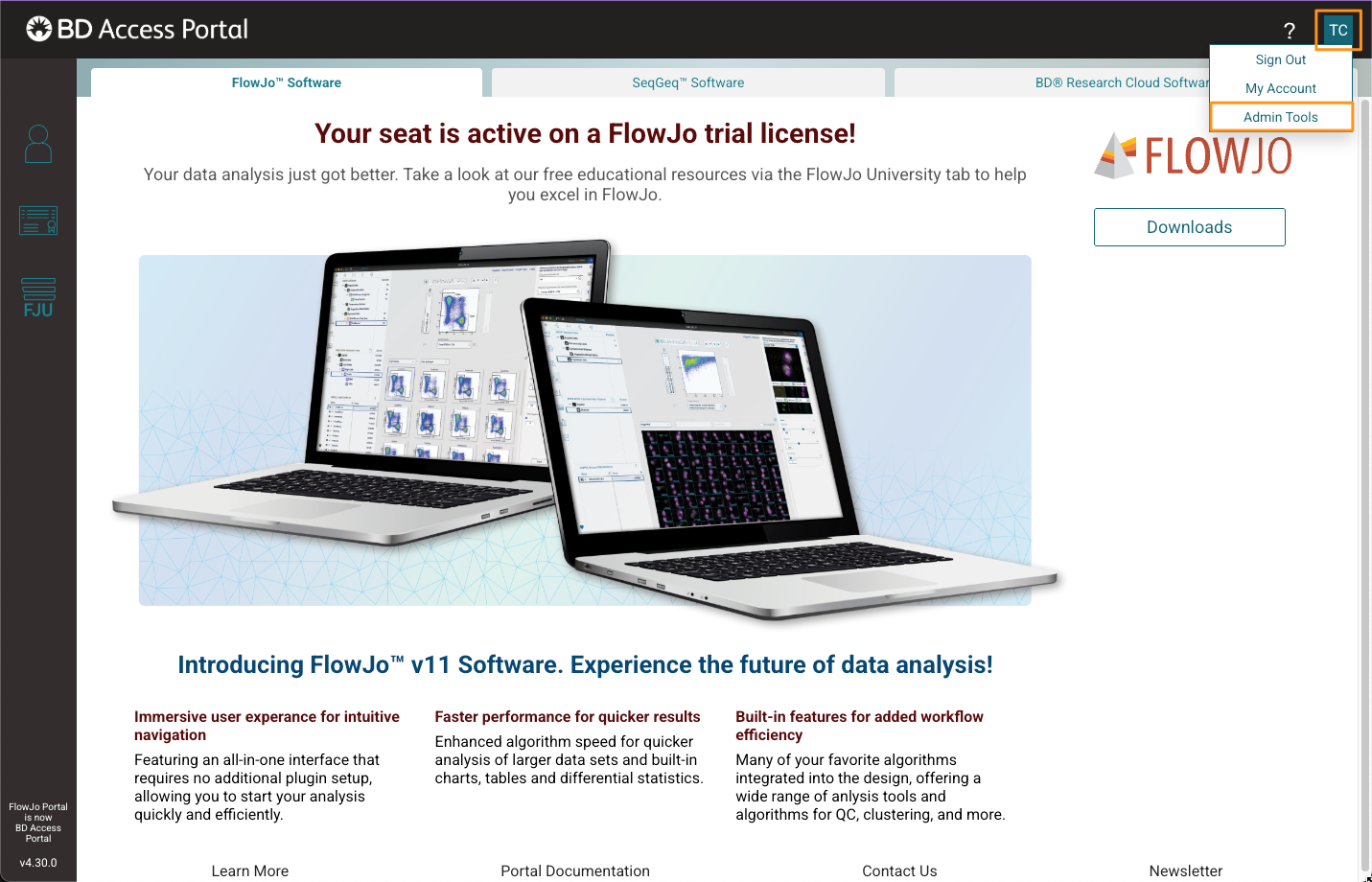
Sign into your BD Access Portal account (bdaccessportal.com). Click on your BD Access Portal avatar on the upper right and choose Admin Tools from the drop-down menu. This will take you to the administrative tools where you can manage licenses and user access to the various BD software products available from your BD Access Portal suite. You can choose the product to manage by selecting on the appropriate tab at the top of the page.
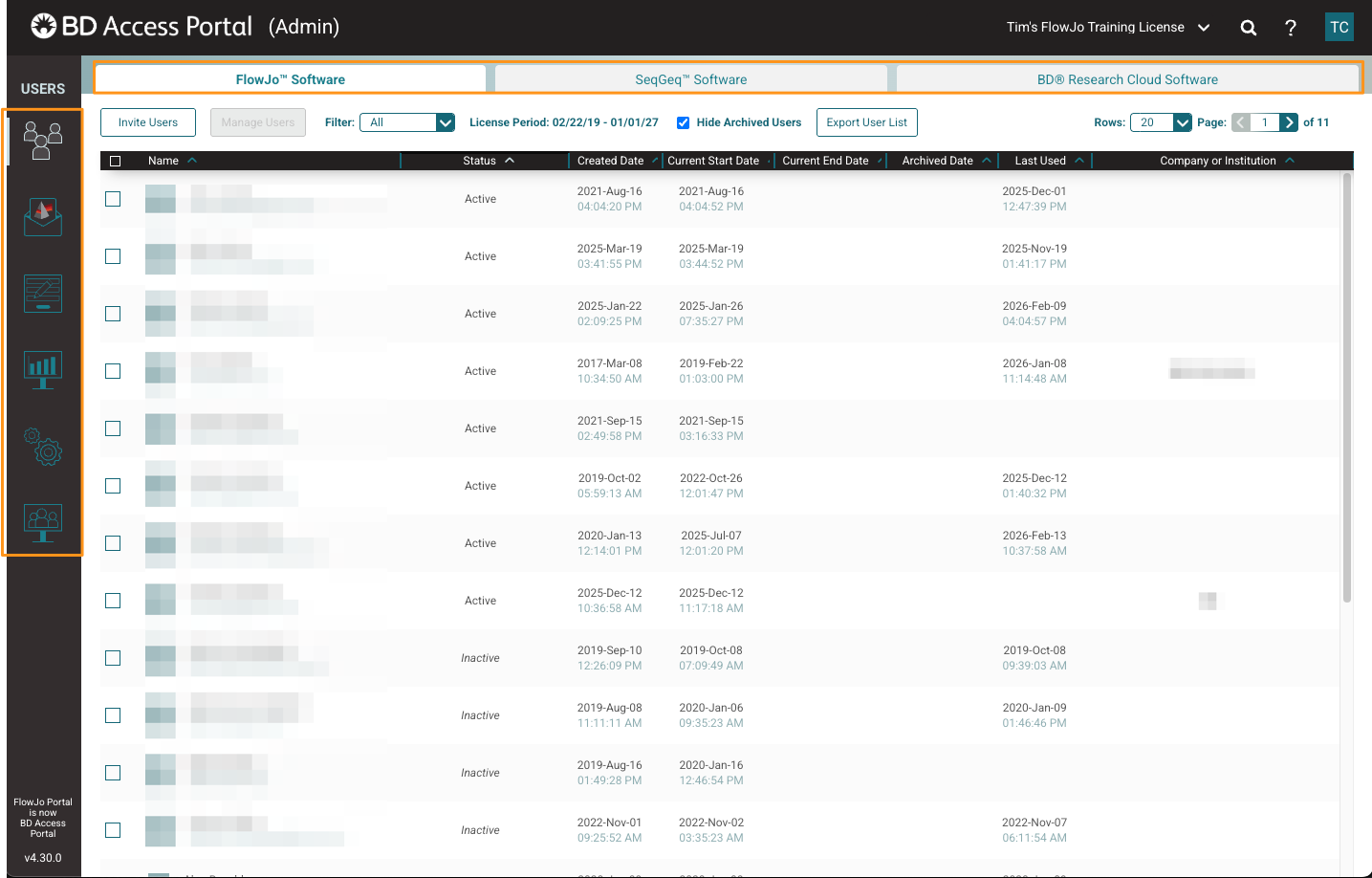
On the left the is a vertical toolbar of Icons that select between different administration tools: Users, Invites, Custom Fields, Reports, Settings and Shared. The tabs at the top of the page allow section of different products. The tool interface will have have some differences depending on the product you select.
Users
The Users tool is where you can manage individual users access to their license/product. You can invite, activate, marked users inactive and set deactivation dates for users with this tool. As a Admin, you can modify which users are displayed with the license status drop-down selector and the search field. Displayed registrations can also be sorted by column by clicking on the ‘carrot’ icon next to the header.
Adding User(s): To add users to your product license click the “Invite Users” button within any of the product tabs. Enter one email address or a list of comma or line-separated email addresses. This will generate an email user invitation to sign up for BD Access Portal for each user entered. The invitation email comes with instructions to create a BD Access Portal account. Once the account has been created and the user has accepted their group license invite, they will immediately be registered as Active on the license. If you are inviting users in bulk, BD Access Portal will only allow you to send invites to 100 emails at a time.
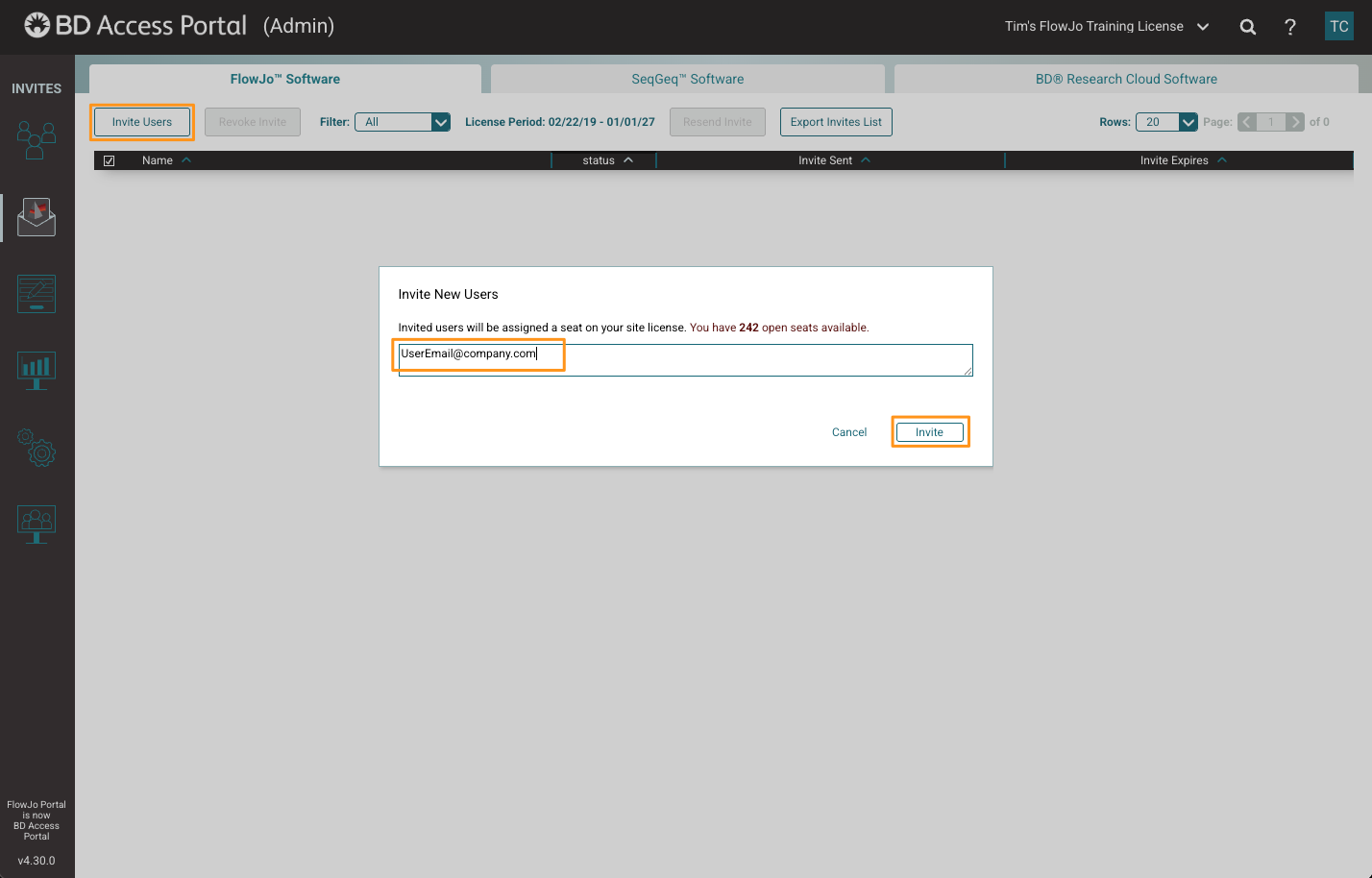
Note: You can only add users up to the number of seats that you have purchased and users must have email addresses that are on your institution’s email suffix whitelist.
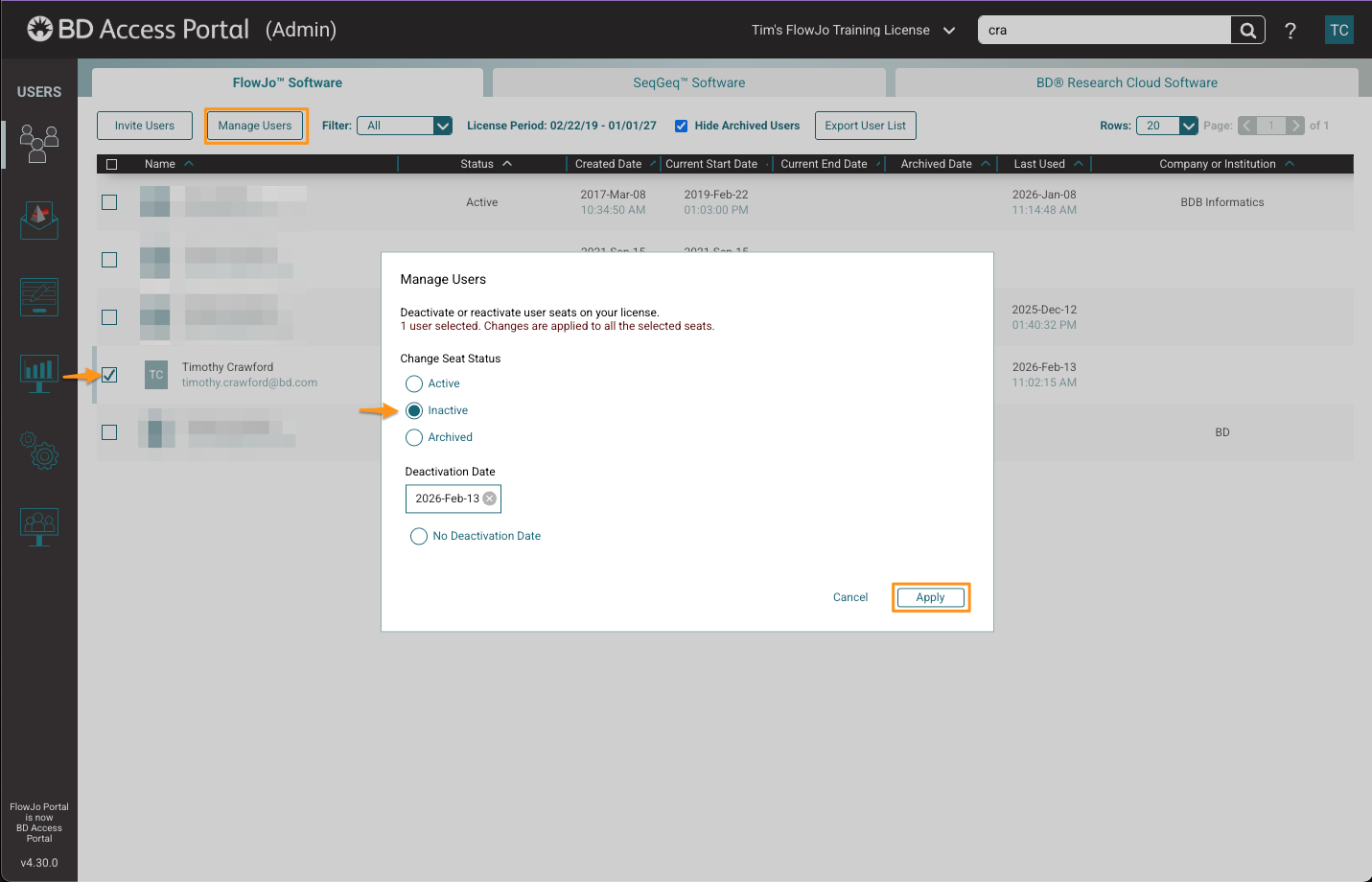
Managing User(s): Search for the user in the top right corner search box to limit the displayed list if desired, then Check the box next to a user (or multiple users) and click the “Manage Users” button. This will bring up a window to control the Activity state of the users' license. Active users will be counted against your seat count, Inactive and Archived users will not. If a Deactivation Date is set, the users' license seat will automatically revert to Inactive on this date. Click the Apply button to apply any changes. The changes will be applied to all users originally checked before clicking Manage Users.
Invites
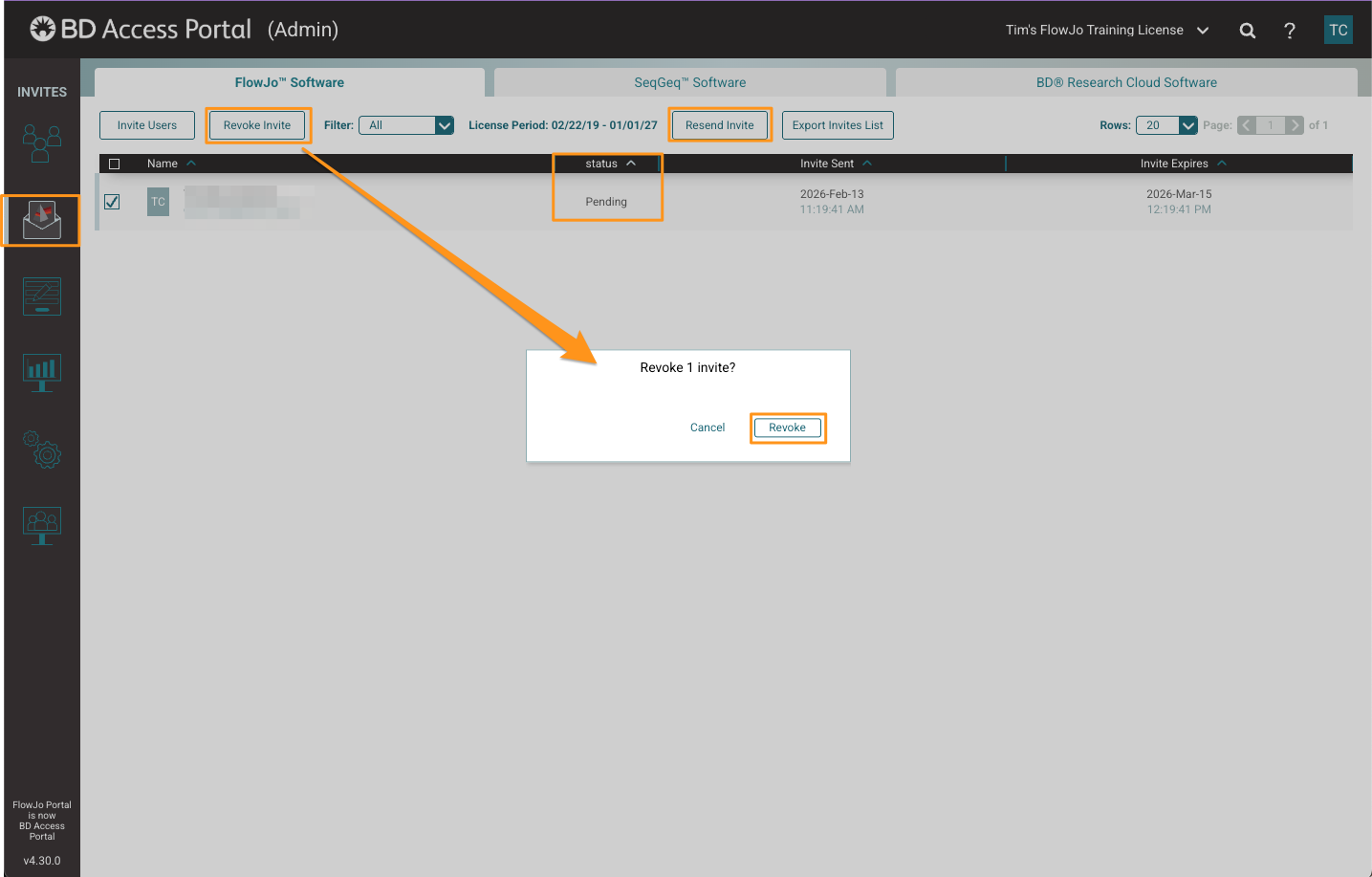
View and manage the list of users who have been invited to join the group license by selecting the Invites tool. Here Froup License Admins can revoke or resend invites to users. To do so, check the box next to a users' name, then click the appropriate Revoke Invite or Resent Invite action button at the top of the page. A confirmation dialog will appear with a button to perform the selected action. Click to confirm.
Group license Invitations are valid for 30 days. During this time the user license status will say Pending if they have not accepted the invitation. The Invite Sent and Expire data are shown in columns on the right. After 30 days the user license status will switch to Expired, and the invitation will need to be re-sent to refresh the invite.
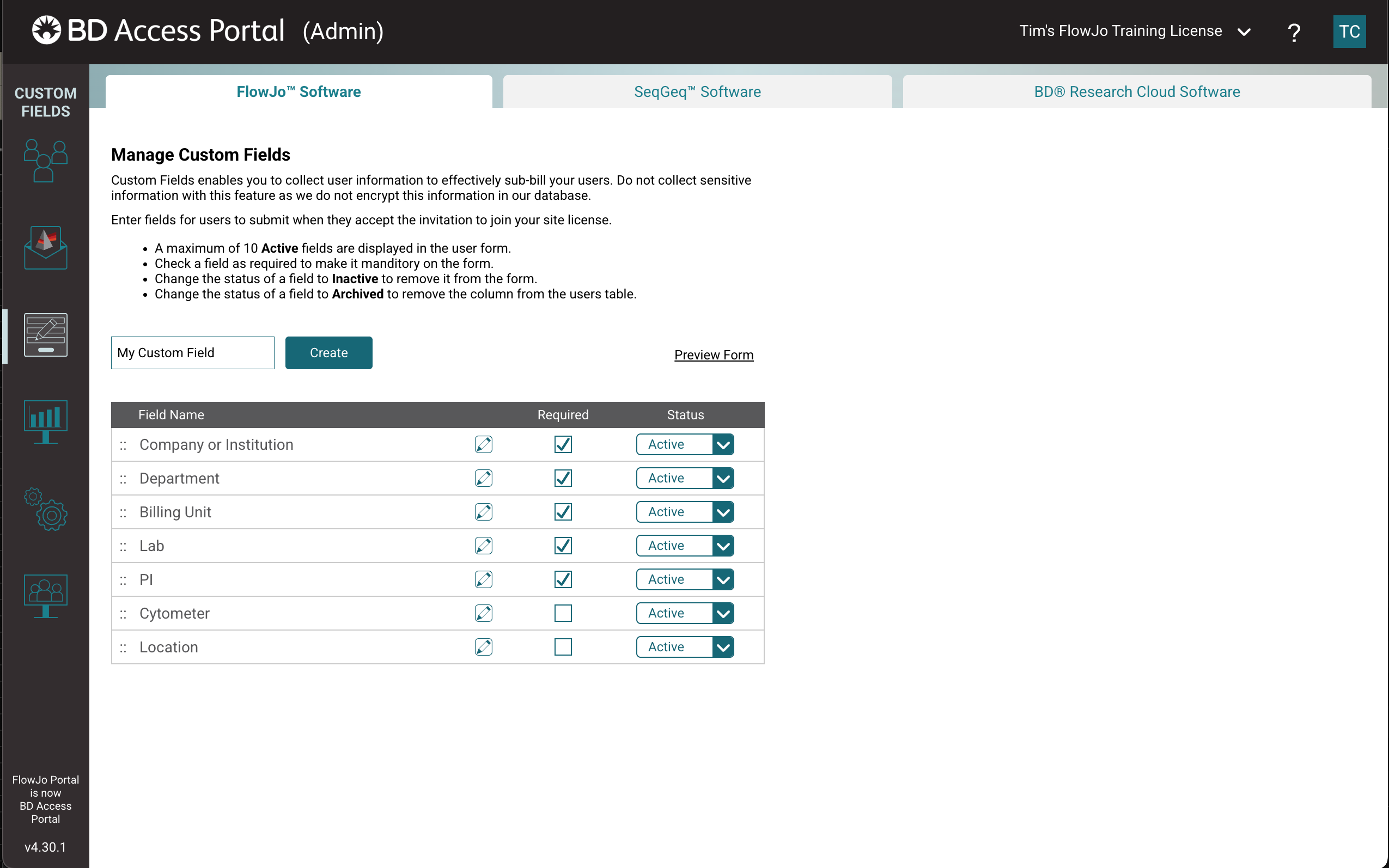
Custom Fields
The Custom Fields tool enables you to collect user information to effectively collect information about your users. Some group license customers use this tool to collect department information for sub-billing purposes. Do not collect sensitive information with this feature as we do not encrypt this information in our database.
Reports Overview
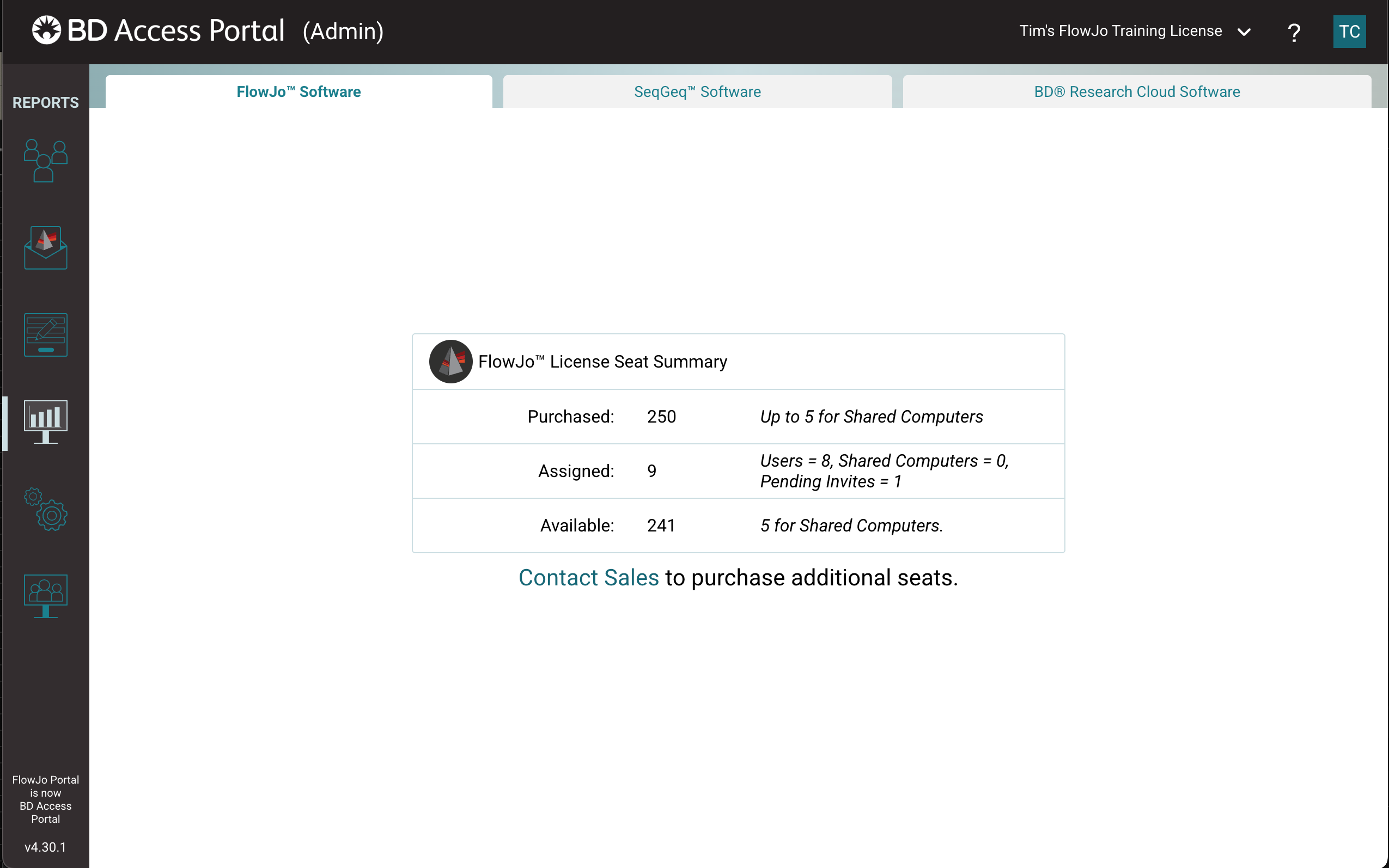
The Reports tool varies greatly based on the product tab selected and associated license model.
The Reports page displays the number of purchased seats, assigned seats, and available seats. A link to “Contact Sales” will prompt you to email our Sales and Licensing experts at flowjooffice@bd.com.
Settings
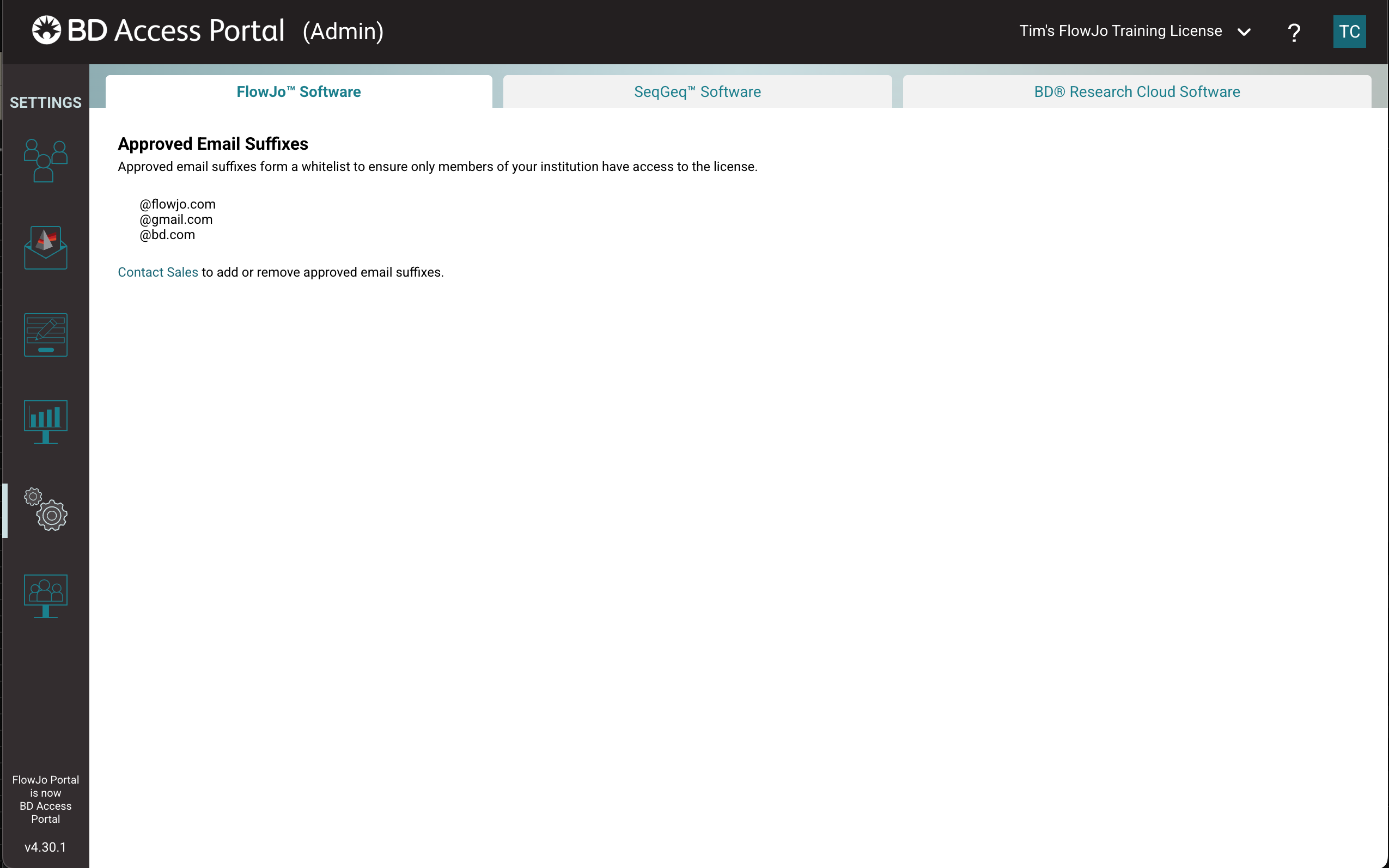
The Settings tool displays all whitelisted email suffixes for FlowJo, Infinicyt, and/or SeqGeq group licenses. This ensures that only users associated with your institution can join your license. If you would like to add subdomains to your approved email suffix whitelist, contact flowjoaccountservices@bd.com.
Shared Computers
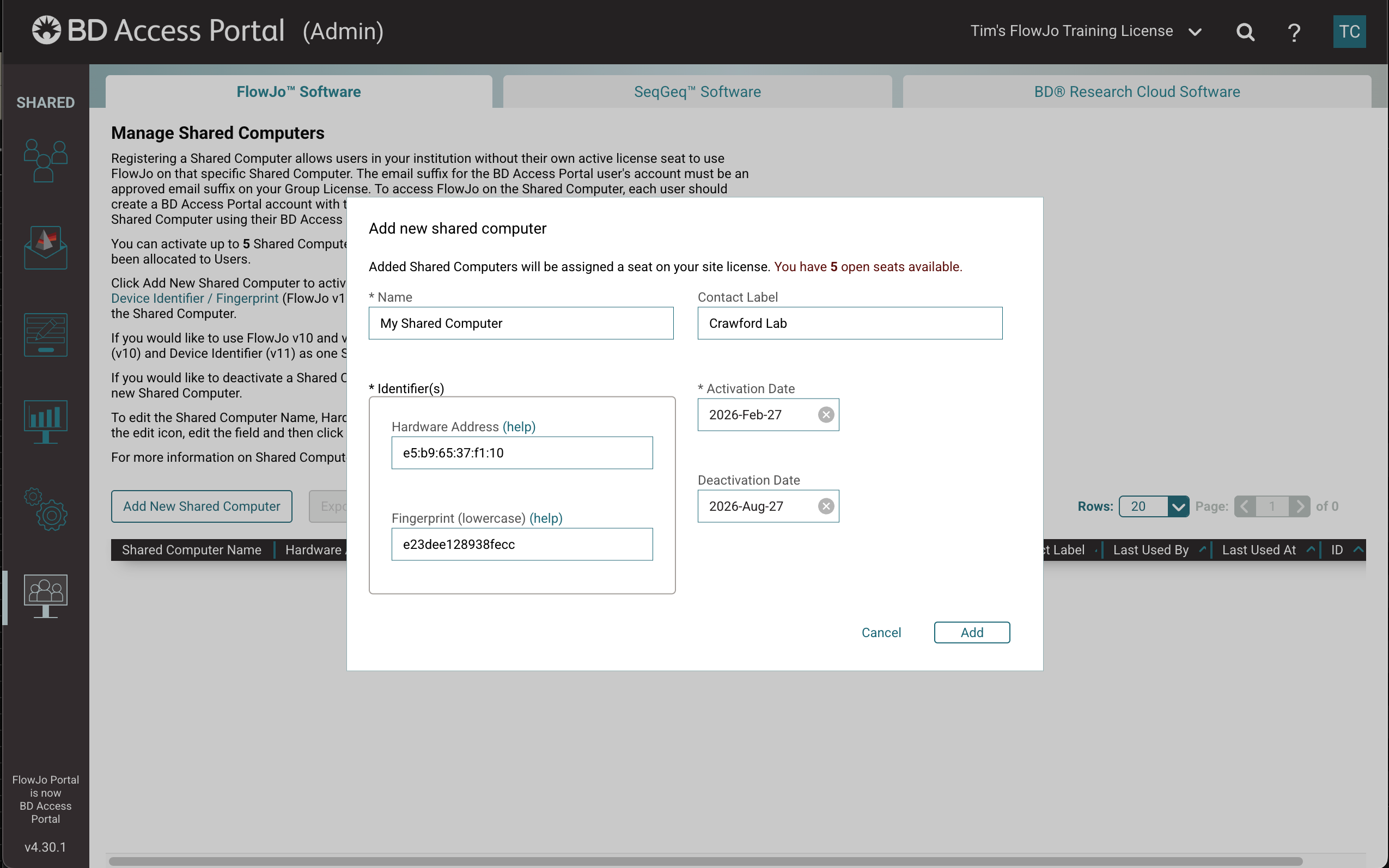
The Shared Computers tool allows you to specify one or more specific computers to act as a shared device for anyone at the organization who has created a BD Access Portal account using an email with a suffix that is whitelisted on the group license, to access the software on that computer without a full individual license seat. Up to 10% of your group license seats can be assigned to Shared Computers.
To register a shared computer:
1) Click Add New Shared Computer button and assign the computer a Name and (optionally) a Contact Label.
2) Enter the 16-digit Device Identifier displayed in the BD Access Portal desktop client application to register the device for shared access to FlowJo™ v11 or Infinicyt™.
3) Enter the 12-digit Hardware Address (HWA) displayed in FlowJo™ v10's License Preferences to register that device for shared access to FlowJo™ v10.
4) Choose an Activation Date and (optionally) a Deactivation Date.
5) Click Add
 For further assistance getting started with your BD Access Portal Group License, please contact support at flowjoaccountservices@bd.com