

How to Create a new BD Access Portal User Account:
1. Navigate to the BD Access Portal Website and click the Create Account link.
Or, click here.
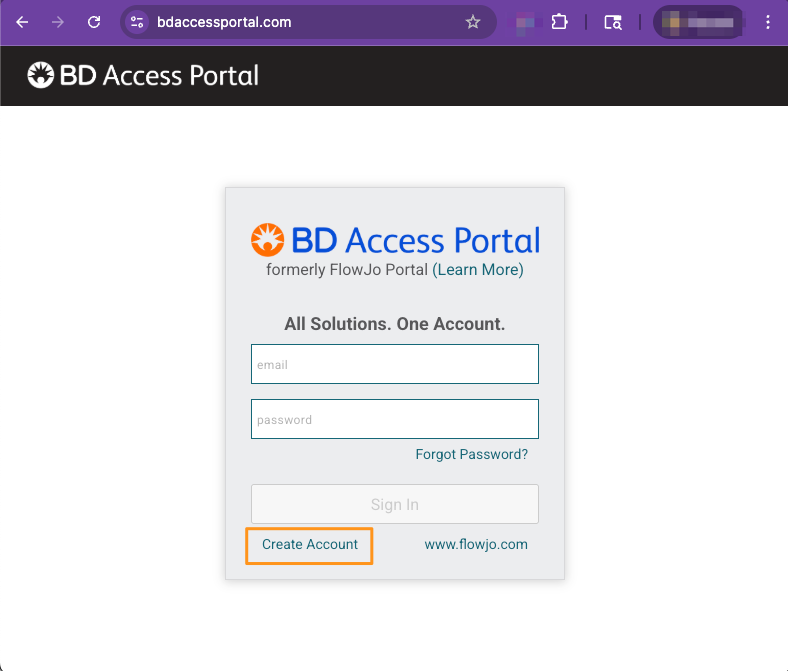
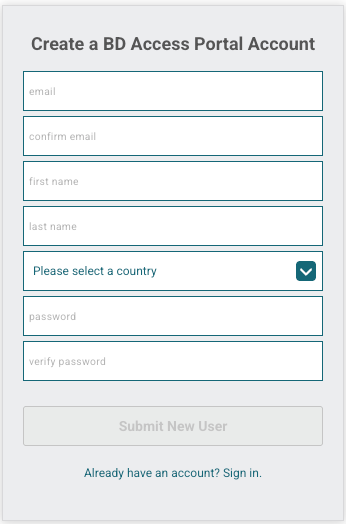
2. Fill out the form and click Submit New User.
The Email and Password you use when creating a BD Access Portal account will be your Login Credentials for the BD Access Portal website (https://bdaccessportal.com/) and desktop application (which is installed on your computer with/when installing the FlowJo v11 or BD Infinicyt v3.0+ Software).
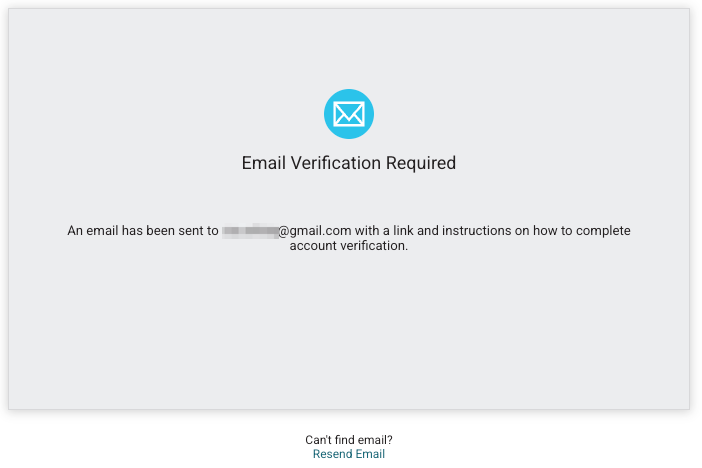
3. Verify the email used to create your account.
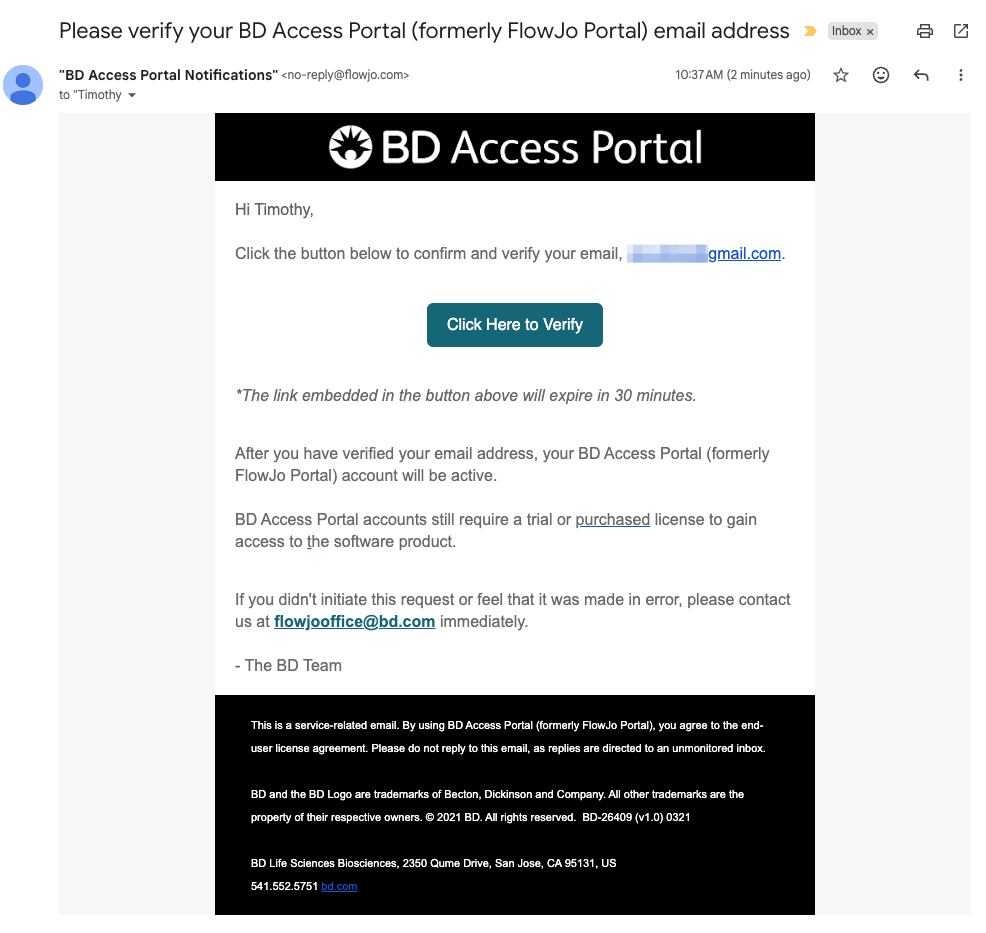
An email containing a "Click Here to Verify" link will be sent from no-reply@flowjo.com.
Click the "Click Here to Verify" link in the email in order to activate your account.
The "Click Here to Verify" link will generate a confirmation email to let you know you’ve successfully verified your unique email address.
3. Log into the BD Access Portal website and accept the End User License Agreement (EULA)
Post email verification, you’ll be able to access your BD Access Portal User Account by logging into BD Access Portal Website, where you will be prompted to accept the BD Access Portal End-User License Agreement (EULA) and Privacy Policy.
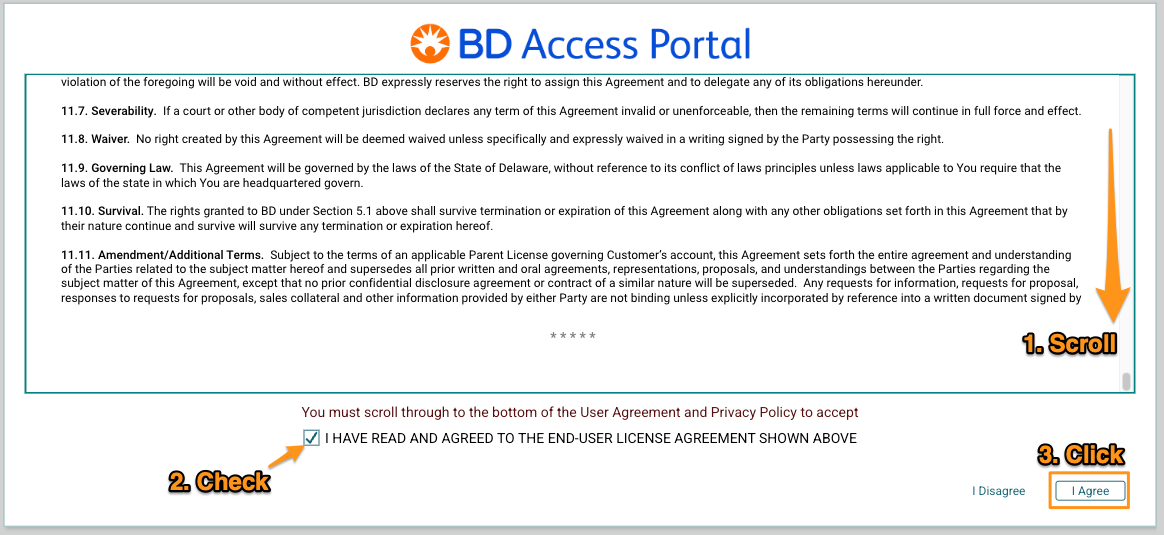
Acceptance of the EULA and Privacy Policy is required in order to utilize the BD Access Portal. These legal agreements protect both the researcher and BD. Please review the EULA and Privacy Policy on this page prior to accepting these terms and conditions. We have linked both policies below if you need to review them outside of BD Access Portal. If you would like a copy of these documents, please contact FlowJoOffice@bd.com.